NinjaTrader and Tradovate Auto-Sync for Your Futures Journal
Connect NinjaTrader or Tradovate to PlanningTrade and sync futures trades automatically, including prop firm evaluation and funded accounts on Tradovate.

If you trade futures through NinjaTrader or Tradovate, you can now connect that account to PlanningTrade and have your trades land in your journal automatically. No CSV exports, no copy-pasting fills after the close, and no gap between what your broker shows and what your journal shows.
The connection is read-only and runs through Tradovate’s OAuth login, so you never hand your broker password to a third party. It works for Tradovate demo accounts and, importantly for a lot of futures traders, for prop firm evaluation and funded accounts, which Tradovate runs on its demo environment even when the payouts are real.
This post explains how the integration works, who it’s for, which prop firms it covers, and how to get connected in a few minutes.
Why futures traders needed this
Forex and CFD traders on MetaTrader have had automatic journaling for years. Futures traders mostly haven’t. The typical workflow looks like this:
- Trade the session on NinjaTrader, Tradovate or a prop firm’s platform.
- At the end of the day, open the account history, export a file, and clean it up.
- Upload the file to a journal, fix the columns that didn’t map, and remove duplicates from yesterday’s export.
- Repeat tomorrow, or skip it and lose the habit.
Step four is where most journals die. The value of a trading journal is in the review, not the data entry, and any friction in data entry gets paid for in skipped reviews. We wrote about the same problem for MetaTrader users in how to extract MT5 data and display it nicely. Futures traders had it worse, because a busy scalping session on the ES or NQ can produce dozens of fills that nobody wants to type by hand.
The NinjaTrader and Tradovate connection removes that step. Your futures activity imports on its own, and you spend your journaling time on the part that actually improves your trading: reviewing what you did against what you planned.
What the integration does

Here is what you get when you connect a NinjaTrader or Tradovate account to PlanningTrade:
- Automatic import of your futures activity. Trades come into your journal without an export or upload step.
- Read-only access. PlanningTrade can see your activity but cannot place, modify or cancel orders. The connection is made through Tradovate OAuth, so your credentials stay with Tradovate.
- Demo, evaluation and funded accounts. When you connect, you choose the kind of account. Demo is the right choice for prop firm evaluations and funded accounts, because Tradovate hosts those on its demo environment.
- Everything else in the journal. Once trades are in, they behave like any other trade: they show up on your calendar, in your analytics, against your strategies, and inside your risk rules.
One connection covers both platforms because NinjaTrader and Tradovate share a brokerage and technology foundation. NinjaTrader acquired Tradovate in 2022 (NinjaTrader press release), and the two now run on the same infrastructure. That’s why the Connect screen labels the option “NinjaTrader / Tradovate” and why the login you go through is Tradovate’s.
How to connect NinjaTrader or Tradovate to PlanningTrade
The whole process takes a couple of minutes. You’ll need a PlanningTrade account (there is a free plan, no credit card needed) and the Tradovate login you use for the account you want to journal.
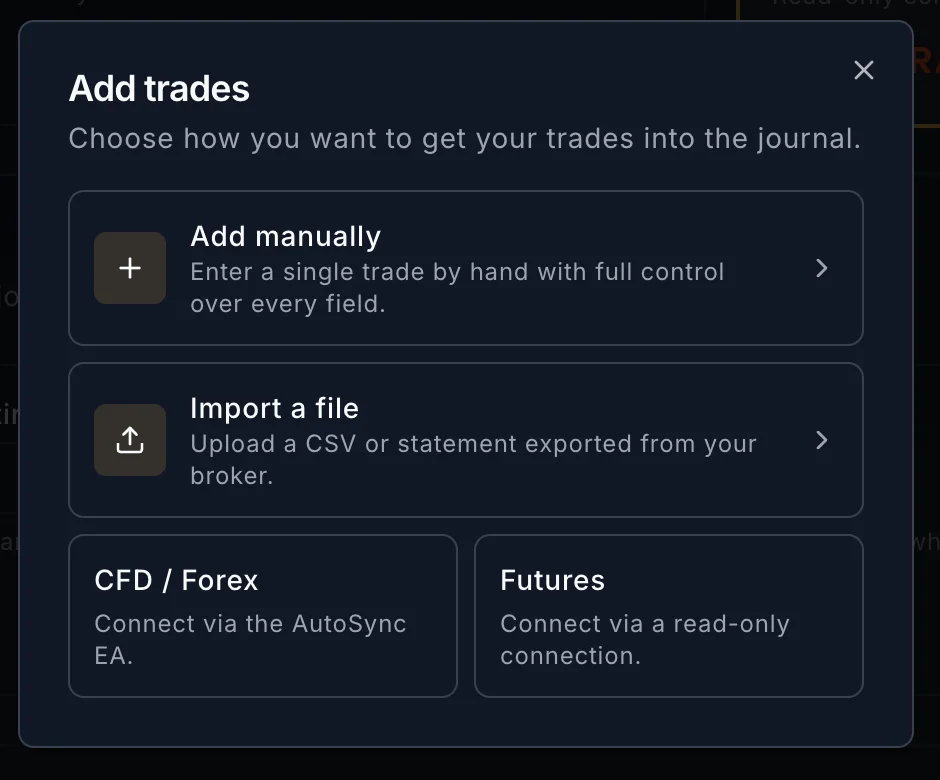
1. Click “Add Trades” in the sidebar
In the app, click Add Trades in the sidebar.
2. Click “Connect your platform”, then “Futures”
An Add trades dialog opens with three options: Add manually, Import a file, and Connect your platform. Click Connect your platform and it expands into two cards. CFD / Forex covers MetaTrader 4, MetaTrader 5 and cTrader accounts, which sync through the PlanningTrade AutoSync EA. Futures is the new one, a read-only connection for NinjaTrader and Tradovate. Click it.
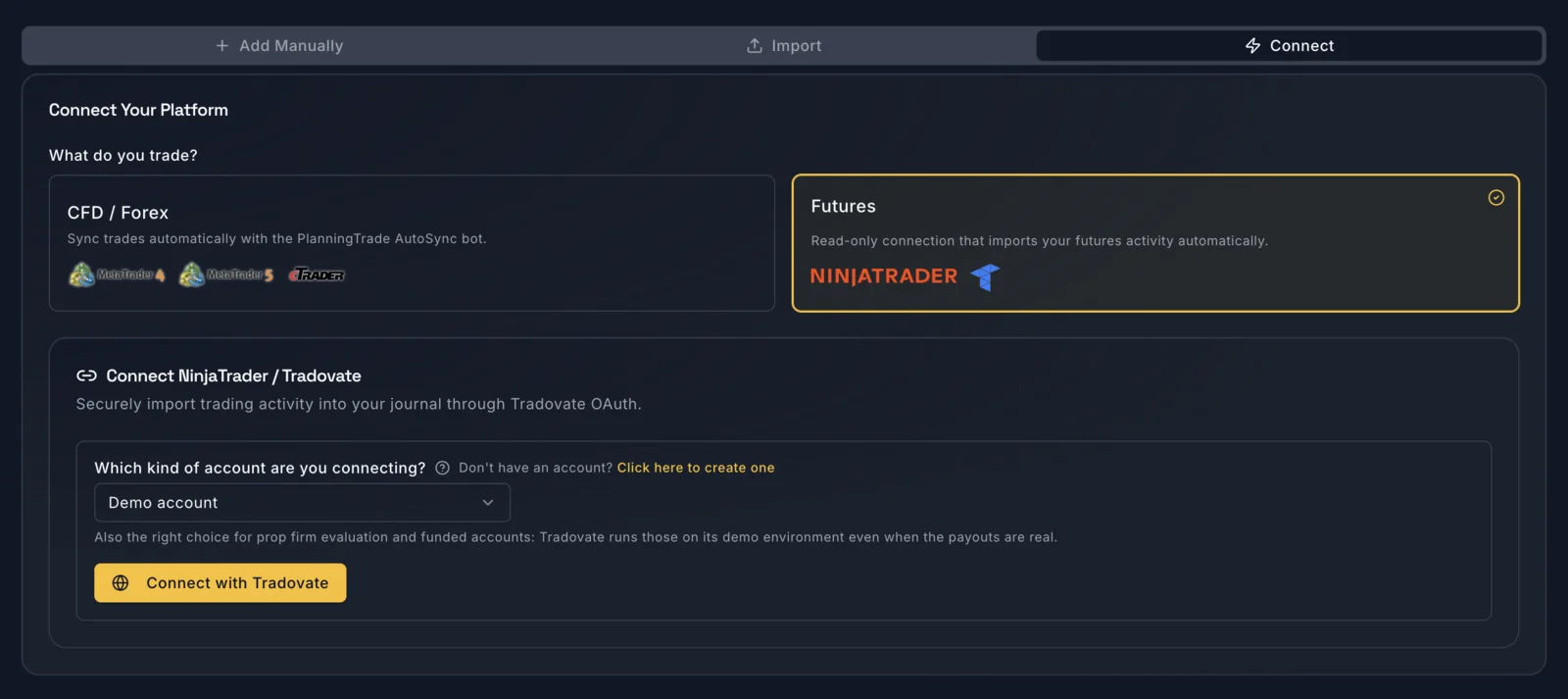
3. Pick the kind of account you’re connecting
A dropdown asks which kind of account you’re connecting. This matters more than it looks:
- Demo account is the correct choice for Tradovate demo accounts and for prop firm evaluation and funded accounts. Tradovate runs prop firm accounts on its demo environment, even when the firm pays out real money. Pick the wrong environment and you can end up with a connected account and an empty journal, so double-check this step.
- A live Tradovate account uses the live option.
If you don’t have an account yet, there’s a link on the same screen to create one. If you plan to trade your own capital rather than a prop firm account, you can also open a NinjaTrader account here and connect it once it’s funded.
4. Click “Connect with Tradovate”
You’ll be sent to Tradovate’s own login page to approve the connection. Sign in with your Tradovate credentials, approve read access, and you’ll be returned to PlanningTrade. Your futures activity starts importing from there.
Troubleshooting
- Login worked but the journal is empty. Almost always the account-type dropdown. Prop firm evaluation and funded accounts need Demo, not live.
- You use NinjaTrader desktop with a NinjaTrader brokerage account. Your login is still the Tradovate one, because both platforms run on the same brokerage backend. Use the same credentials you use for the NinjaTrader web or mobile platform.
- You trade through a prop firm’s own branded platform. Check whether it’s Tradovate underneath (see the list below). If your firm runs on Rithmic or a proprietary platform such as TopstepX, this connection won’t apply, and you can still use the Import tab.
Which futures prop firms does this cover?
Most of the demand for this integration comes from prop firm traders, so it’s worth being specific. Tradovate has become the default platform for a large share of the futures prop industry, which is exactly why searches like “tradovate prop”, “apex” and “lucid” cluster together with “tradovate login” in search data.
Based on the firms’ own platform pages and current third-party comparison lists, these futures prop firms publicly list Tradovate among their supported platforms:
| Prop firm | Tradovate | NinjaTrader |
|---|---|---|
| Apex Trader Funding | Yes | Yes |
| Take Profit Trader | Yes | Yes |
| TradeDay | Yes | Yes |
| Lucid Trading | Yes | Yes |
| Tradeify | Yes | Yes |
| MyFundedFutures | Yes | Yes |
| Alpha Futures | Yes | Yes |
| FundedNext Futures | Yes | Yes |
| Bulenox | Yes | Yes |
| Earn2Trade | Yes | Yes |
| Elite Trader Funding | Yes | Yes |
Source: Tradovate’s prop trading page and the firms’ own platform pages, checked September 2026.
A few notes on reading that table:
- Topstep is the notable exception. Topstep moved its Trading Combines to its own TopstepX platform and does not offer Tradovate, so a Topstep account can’t be connected this way.
- Platform support changes. Firms add and drop platforms regularly and some restrict Tradovate to certain account tiers. Confirm on your firm’s own platforms page before you buy an evaluation on the assumption that it will sync.
- “Supports Tradovate” means the account is a Tradovate account. If your firm gave you Tradovate credentials, the connection above applies, and the account type is Demo.
The names that come up most often in searches alongside Tradovate are Apex, Lucid, Tradeify, Take Profit Trader and MyFundedFutures, so if you trade one of those, this is the integration you’ve been waiting for.
Why auto-sync matters more on a prop firm account
A personal account tolerates sloppy journaling. A prop firm account doesn’t, because the rules that end an evaluation are measured continuously, not at the end of the month.
With trades syncing automatically, the journal always reflects what actually happened on the account, which makes three things possible:
Risk rules evaluated against real activity. PlanningTrade’s risk management is rule-based: you define rule types with comparison operators (maximum loss per day, maximum contracts, and so on), they’re evaluated per account, and breaches are tracked. That is only useful if the trade data is complete. A hand-entered journal that’s missing yesterday’s afternoon session will tell you you’re fine when you’re not.
An honest calendar. The daily and weekly view of your P&L is where prop firm traders spot the pattern that gets them disqualified: two solid weeks followed by one day that gives most of it back. We covered how to read that view in how to read a trading journal calendar. Auto-sync keeps the calendar complete without you doing anything.
Plan versus execution. The reason we built PlanningTrade around planning first and reviewing second is that most rule breaches aren’t strategy failures, they’re discipline failures. When your trades arrive on their own, the comparison between the plan you wrote before the session and the fills that came in during it becomes a five-minute review instead of a data-entry chore.
None of this makes a funded account safe. A journal can show you that you’re two losing trades from your daily limit; it can’t stop you from taking the third. Treat it as visibility, not protection. See our risk disclosure for the boring but important version of that sentence.
NinjaTrader vs Tradovate: does it matter which one you use?
Not for the journal. Both connect the same way and both produce the same result in PlanningTrade. The choice between them is about your trading, not your journaling:
- Tradovate is browser and mobile first, and it is the platform most prop firms hand you by default.
- NinjaTrader is the desktop platform with the deeper charting, order-flow tools and strategy automation, and it connects to the same brokerage.
A common setup is to chart and execute in NinjaTrader desktop while the account itself is a Tradovate account. If that’s you, connect with your Tradovate login and you’re done.
If you’re choosing between the two for a prop firm evaluation, pick the one your firm supports at the account tier you’re buying, then connect it here.
Trading your own money instead? Open a NinjaTrader account
Prop firms are the loudest part of the futures space right now, but they’re not the only way in. Plenty of traders would rather put their own capital on the line and skip the evaluation fees, the trailing drawdown and the consistency rules altogether. If that’s you, a personal futures account is the straightforward option, and the journal connection works the same way.
Open a NinjaTrader account, fund it, then connect it to PlanningTrade with the steps above, choosing the live option instead of Demo. Your risk rules become the ones you set for yourself rather than the ones a firm sets for you, which is a good reason to actually write them down.
A personal account means real money at risk from the first contract, with no firm-imposed loss limit standing between you and a bad day. Read our risk disclosure and size accordingly.
What about MetaTrader, cTrader and everything else?
The futures connection sits next to the existing CFD/Forex sync. PlanningTrade supports MT4, MT5 and cTrader through the AutoSync bot, so a trader who runs a forex prop firm account on MT5 and a futures evaluation on Tradovate can keep both in the same journal, each with its own risk rules.
For platforms that aren’t covered by either connection, the Import tab still accepts your history file, and Add Manually is always there for the occasional trade you want to record with a full plan attached.
If you’re weighing journals for a futures account specifically, our 3 best trading journals in 2026 roundup compares the options, including where PlanningTrade is and isn’t the right fit.
Frequently asked questions
Is the NinjaTrader/Tradovate connection read-only?
Yes. PlanningTrade connects through Tradovate OAuth with read access to your trading activity. It cannot place, modify or cancel orders, and it never sees your Tradovate password.
Does it work with prop firm evaluation accounts?
Yes, as long as the firm runs your account on Tradovate. Select Demo account when connecting, because Tradovate hosts prop firm evaluation and funded accounts on its demo environment even when the payouts are real.
Does it work with Topstep?
No. Topstep uses its own TopstepX platform rather than Tradovate. You can still journal a Topstep account through the Import tab.
I trade on NinjaTrader desktop. Which login do I use?
Your Tradovate login. NinjaTrader and Tradovate share the same brokerage backend, so the Connect screen treats them as one option.
Do I need a paid plan?
No. PlanningTrade has a free plan with no credit card required. Check the current plans on planningtrade.com for what each includes, since we don’t quote limits in blog posts that go stale.
Can I connect more than one account?
Multiple accounts are the normal case for prop firm traders, and each connected account is evaluated against its own risk rules. Check the plan details for the current account limits.
Get your futures trades into a journal that plans first
If you trade futures on NinjaTrader or Tradovate, especially through a prop firm, the export-and-upload routine is no longer the price of keeping a journal.
Create a free PlanningTrade account, click Add Trades, then Connect your platform, choose Futures, and sign in with Tradovate. Your trades will be waiting for you at the next review.